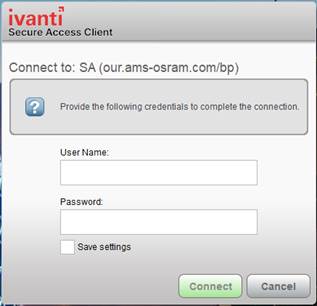
Installation of the Ivanti Secure Access Client
Important
remark: The installation task below requires elevated admin privileges.
If you do not have local admin credentials on your computer, please contact
your IT department for assistance.
1. Based on your device operating system, download and install the Ivanti Secure Access Client.
|
Windows 64-bit |
MacOS |
Linux CentOS/RHEL platforms
|
Linux Ubuntu/Debian platforms |
|
[Download]
|
[Download] |
[Download] |
[Download] |
2.
Once the Ivanti Secure Access Client is successfully installed
on your computer, in most cases you can directly connect with ams OSRAM through
the client. To do so, search for the application and open it.
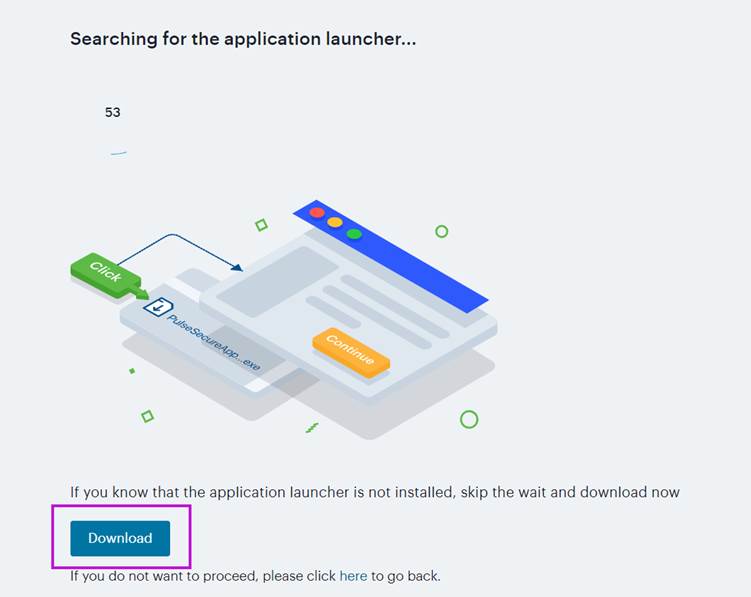
3.
Add a new connection by clicking on the “+”
sign.
Enter the name that you like, i.e. “ams OSRAM”.
Server URL is https://our.ams-osram.com/bp (IMPORTANT -
make sure that you have the /bp included in the URL at the end)
Click on “ADD” to save the settings.
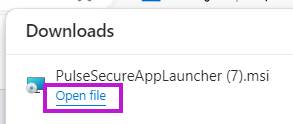
4.
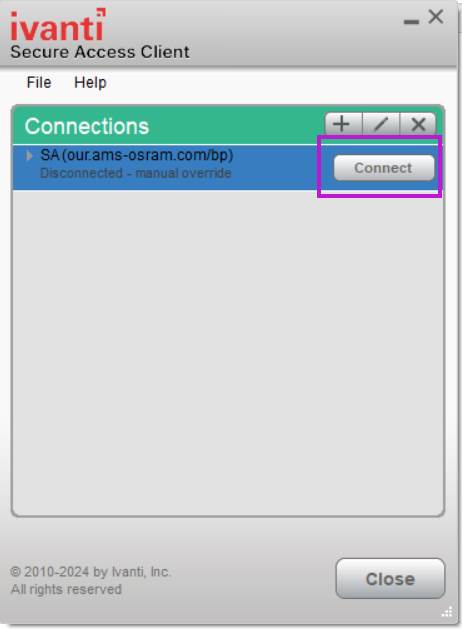
Now you can start the connection
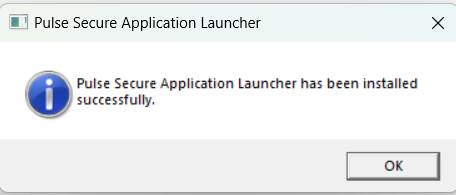
5.
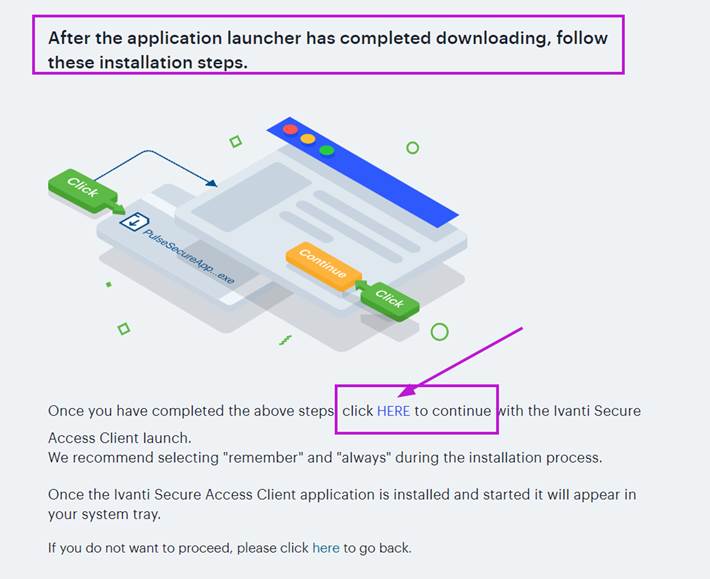
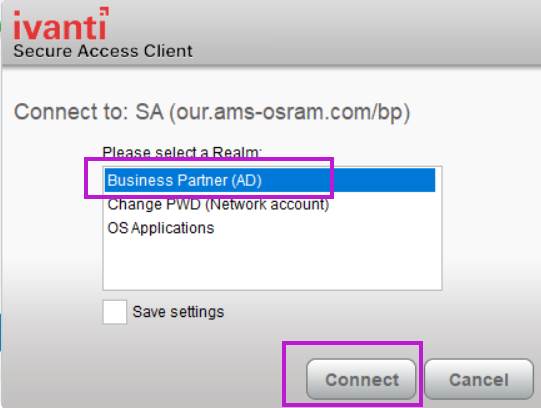
Choose the Access group Business Partner (AD):
6.
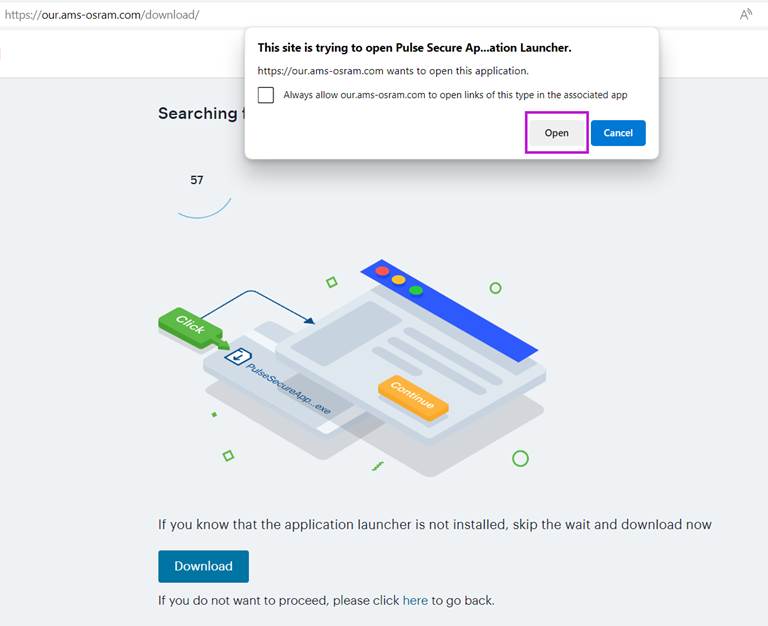
A certificate prompt will appear. Select the ams OSRAM BP
certificate, which is supposed to be already installed on your device, to
confirm the authentication.
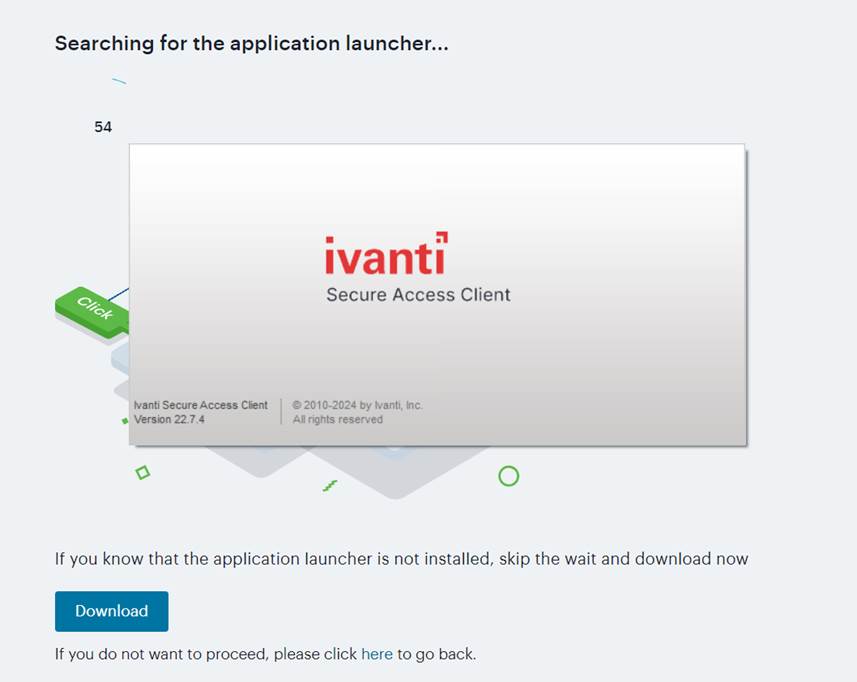
7. Enter your ams OSRAM credentials. If you need assistance at this point, please contact to your sponsor.
8. After the correct login information is provided, the connection is established.
9.
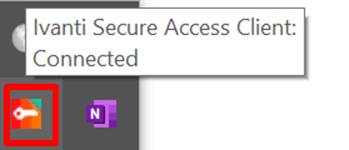
To verify if the Ivanti Secure Access Client is successfully
connected, look for the green triangle in its icon or open it and see if it
shows "Connected”.
10. At this point you can start working with the ams OSRAM tools and applications which you have access to. When you are done with your work, open the VPN client and click on the Disconnect button to close the connection.